
Picture this: one of your employees suddenly gets buried under hundreds of junk emails. A few minutes later, a Microsoft Teams message pops up from "IT Service Desk (Matt)" saying they've spotted the spam problem and can fix it fast. All your employee has to do is open a tool that's already on their Windows PC and read back a six-digit code.
It feels helpful. It's actually an attacker getting into your network.
This isn't hypothetical. In the last few weeks, three separate security research teams have described this exact playbook. We think it's the most important threat for small businesses to understand heading into 2026's busy end-of-year season. That's not because the attack is clever. It's because it targets the thing your team trusts most: help from IT.
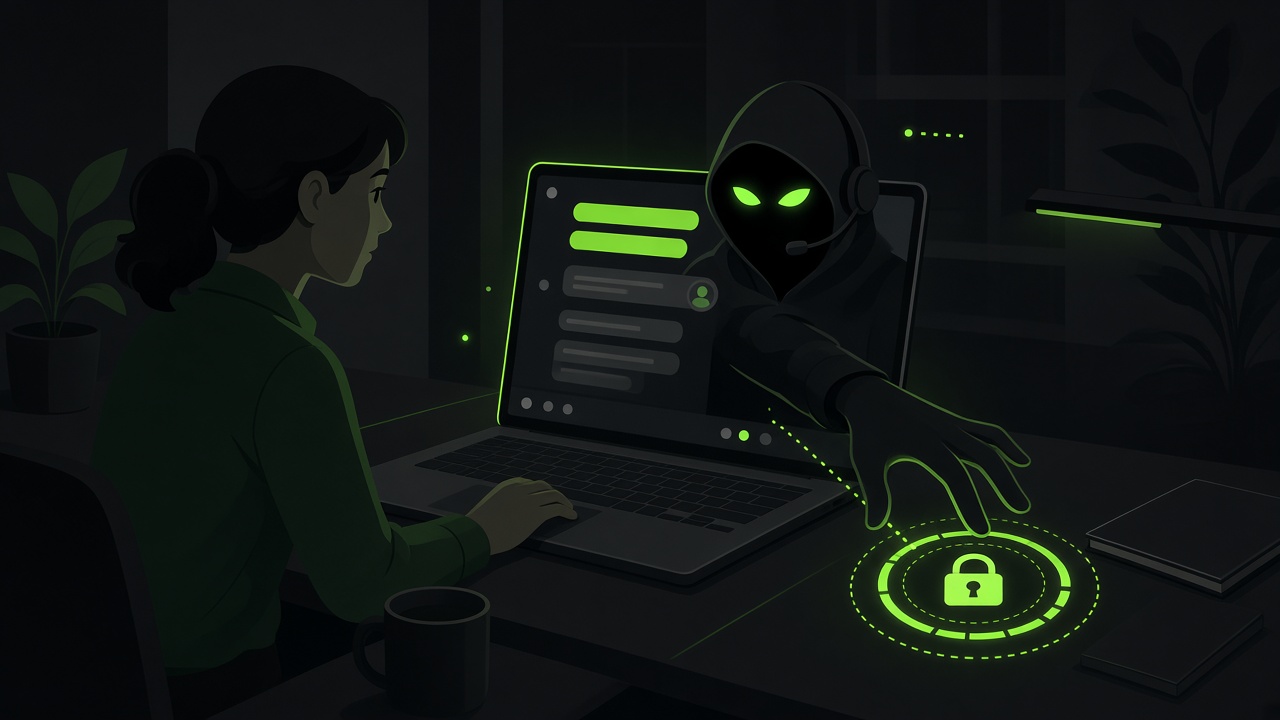
What's happening: attackers are impersonating IT support
Here's what the recent research shows:
- Arctic Wolf documented more than 400 incidents in which attackers abused Microsoft Teams' external chat feature. In many cases, the fake help desk message arrived minutes after the victim's inbox had been flooded with newsletter and subscription sign-ups (Help Net Security). The attackers used display names like "IT Support (Internal)" and throwaway Microsoft 365 accounts with names like "helpdeskteam365" (The Hacker News).
- Microsoft's own threat intelligence team investigated two intrusions that started with Teams messages and calls from fake support staff. In both, the user was talked into opening Quick Assist, the remote-support tool built into Windows, and sharing the connection code. Microsoft called that remote session "the decisive transition in the attack," and noted that no Teams vulnerability was involved (Microsoft Security Blog).
- Cisco Talos saw attackers posing as help desk staff by phone, email and Teams in the third quarter of 2026. In one case, a single Quick Assist session ended in ransomware. A Talos researcher said the attackers "appeared to know employee names and email addresses," but showed no clear evidence of deeper research than that (Help Net Security).
That last point matters a lot for smaller companies. These attackers don't need inside knowledge of your business. A name, an email address and a believable story are enough.
Why small businesses are especially exposed
Our take: this is a process problem, not a people problem. Telling your team "don't fall for scams" won't fix it. Here's why smaller organizations get hit hard:
Teams lets outsiders reach your people by default
According to Arctic Wolf, Microsoft Teams ships with external access (federation) turned on by default. That means a user in almost any other Microsoft 365 organization can find, chat with and call your employees (Help Net Security). Most small businesses never touch that setting.
Everyone is a target, not just executives
Talos found that victims varied within the same organization. The attackers were looking for anyone who would say yes, not a specific privileged person (Help Net Security). Your front desk, your bookkeeper and your field techs are all fair game.
"IT will call you" is how many SMBs actually work
At a 25-person company, an unexpected call from IT feels normal, and attackers count on that. If there's no agreed way to confirm that a support contact is real, your employees have to guess.
How to stop fake IT help desk scams: a practical checklist
The good news is that you can close this door with a handful of settings and one clear rule. Here's what we recommend for businesses with 10 to 150 employees.
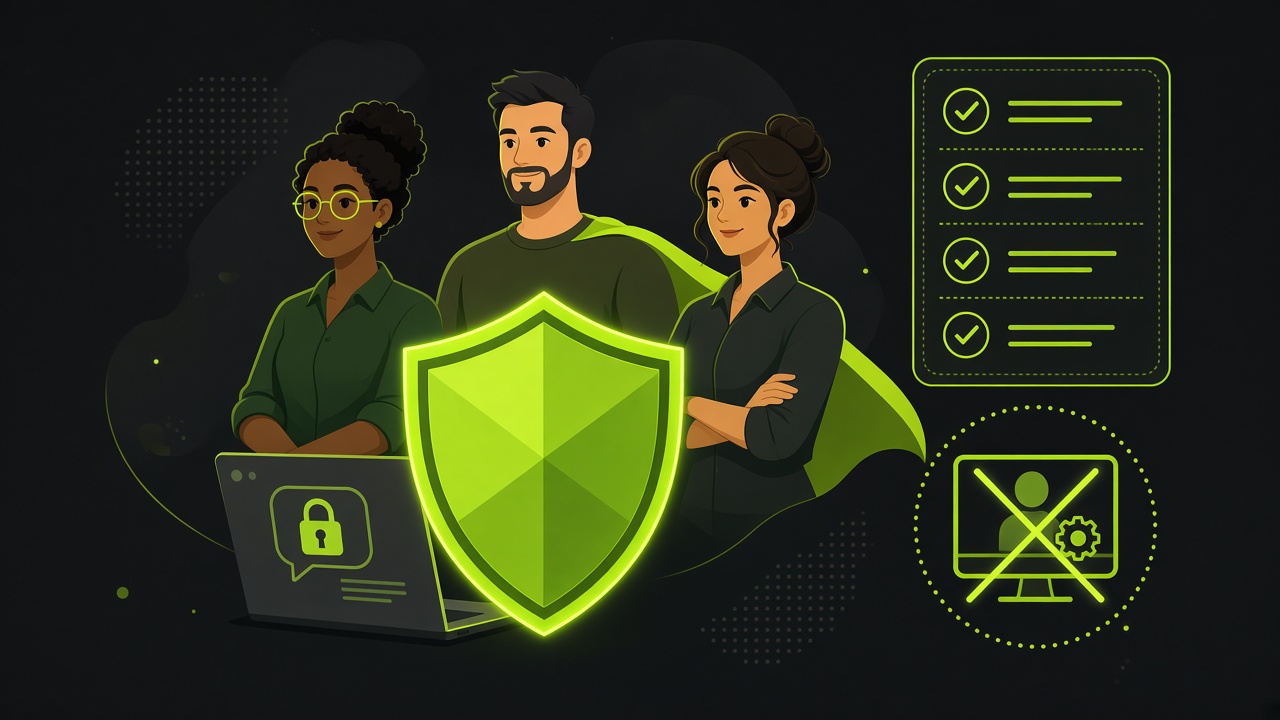
1. Create a "verify before you share your screen" rule
Microsoft's guidance is simple: require users to check unsolicited support requests through a known internal channel before they join a call, share a screen or start a remote-control session (Microsoft Security Blog). Make it policy:
- A good managed IT provider shouldn't need you to read back a remote-access code. Most already have secure management tools on the computers they support, so a surprise request for a code from "IT" should set off alarms. Hang up or close the chat.
- Call back on a number you already know, like the one on your IT provider's contract or website. Never use a number given to you in the chat, email or pop-up.
- Confirm through a channel you already trust. If your IT provider has a client portal or ticketing system, check there (or open a ticket) before you do anything an unexpected "tech" asks. A real request will have a paper trail. A fake one won't.
2. Lock down Microsoft Teams external access
Review your Teams external-access settings. Limit outside chat to the partner and client domains you actually work with, instead of leaving it open to everyone. Microsoft recommends reviewing these policies and limiting external domains to business needs (Microsoft Security Blog). Also teach your team to take the "External" label in Teams seriously. A message marked External from "IT Support (Internal)" is a contradiction, and a giveaway.
3. Control which remote-access tools can run
If your IT team uses a different remote-support tool, Quick Assist doesn't need to be on every PC. Microsoft recommends limiting remote-support software to approved products, operators and workflows (Microsoft Security Blog). Attackers in the Arctic Wolf cases used tools including AnyDesk, ScreenConnect and TeamViewer, too (The Hacker News), so "approved tools only" should apply across the board.
4. Treat a sudden spam flood as an alarm, not an annoyance
If an employee's inbox suddenly fills with sign-up confirmations, that's often step one of this attack. Tell your team that a spam flood followed by a friendly offer to help is a reason to call IT directly, not to accept the offer.
5. Upgrade your MFA and your logs
Talos recommends phishing-resistant MFA, such as FIDO2 security keys, instead of push or SMS prompts. It also recommends that employees confirm with the help desk before they can enroll a new MFA method, and that you keep at least 90 days of centralized logs (Help Net Security).
6. Watch for Microsoft's new Teams protections, but don't wait for them
Microsoft plans to add AI-powered phishing detection to Teams messaging in December 2026 (CloudCapsule). Welcome, but don't wait for it.
Quick checklist for business owners
- Written policy: no remote access for unsolicited support requests, ever
- Every employee knows how to confirm a support request through your IT provider's portal or known number
- Teams external access restricted to approved domains
- Remote-support tools limited to the one your IT team actually uses
- Staff briefed on the "spam flood, then helpful IT" pattern
- Phishing-resistant MFA on the roadmap, starting with admins and finance
- At least 90 days of centralized logging in place
FAQ
What is a fake IT help desk scam?
It's a social engineering attack where someone pretends to be your IT support by phone, email or Microsoft Teams. They talk an employee into granting remote access, often with Windows Quick Assist, then use that access to steal data or deploy ransomware.
Is Microsoft Teams unsafe to use?
No. Microsoft and other researchers say these attacks didn't exploit a Teams vulnerability. They abuse normal features, like external chat being on by default. Tightening your settings and verification process makes Teams much safer.
Should we remove Quick Assist from our computers?
If your IT provider uses a different remote-support tool, disabling or removing Quick Assist is a sensible step. Talk to your IT team first so you don't break the support tool they rely on.
How do I know if a call from "IT" is real?
Don't trust the caller ID, display name or a number they give you. Hang up and contact your IT provider through a number or portal you already know. A real technician will thank you.
Your IT superheroes don't need your code
Here's a simple rule: the real heroes never ask you to hand over the keys to your computer out of the blue. For our managed clients, we already have secure, direct access to the machines we support, so we'll never call out of nowhere asking you to read us a code. If a "help desk" message feels urgent, unexpected or just a little off, pause and verify.
At Pretect, we help Austin and Central Texas businesses put these protections in place, from locking down Microsoft 365 and Teams to setting up verification processes your whole team can follow. Want a quick review of your Teams and remote-access settings? Call us at (512) 358-4407 or contact the Pretect team and we'll help you shut this door before someone tries to walk through it.